
How to add an athlete/client via MINDBODY Integration
If your facility uses MINDBODY, you can retrieve class lists and athlete profiles from your MINDBODY account. See the Settings page on how to link your MINDBODY account.
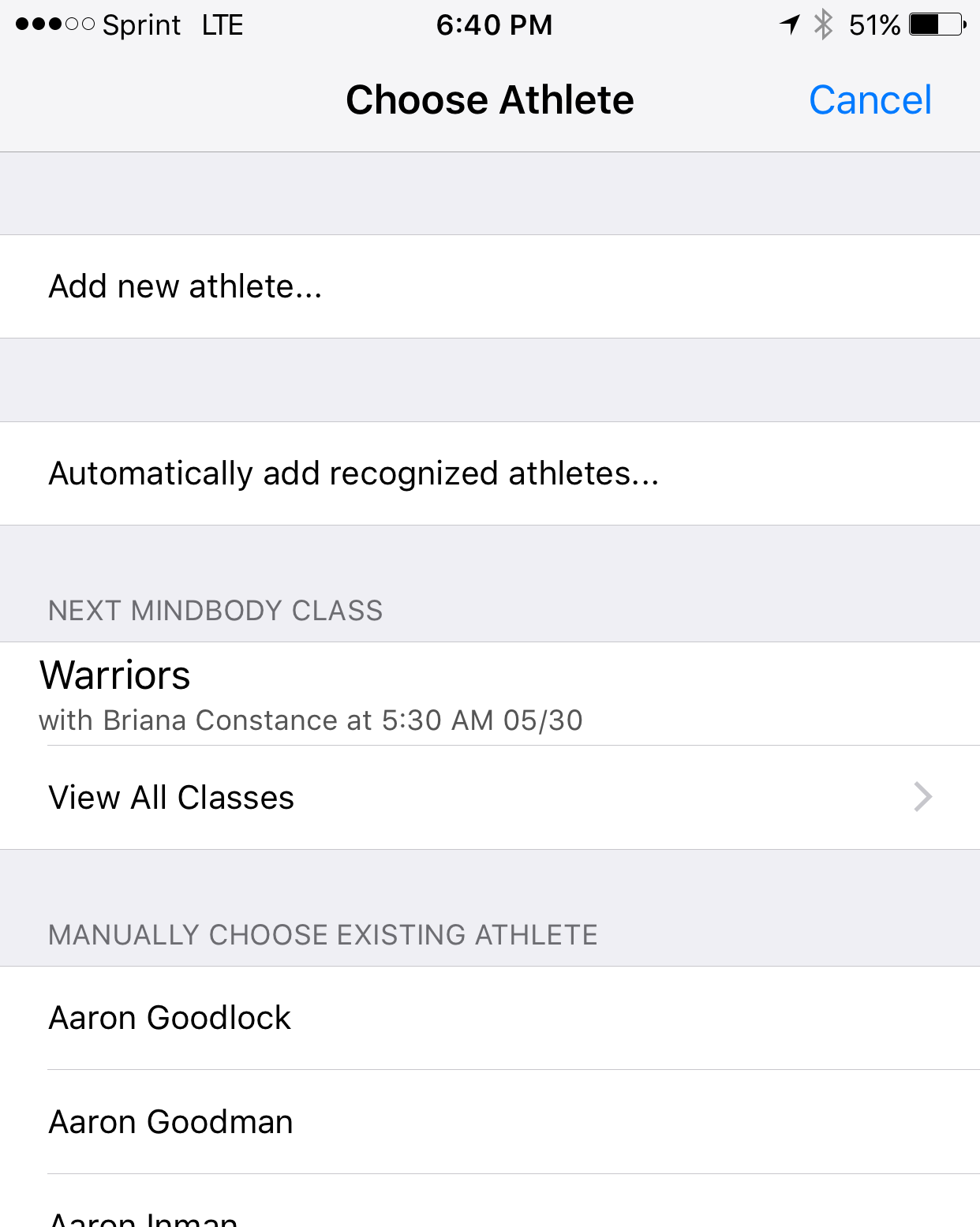
- Press the plus icon.
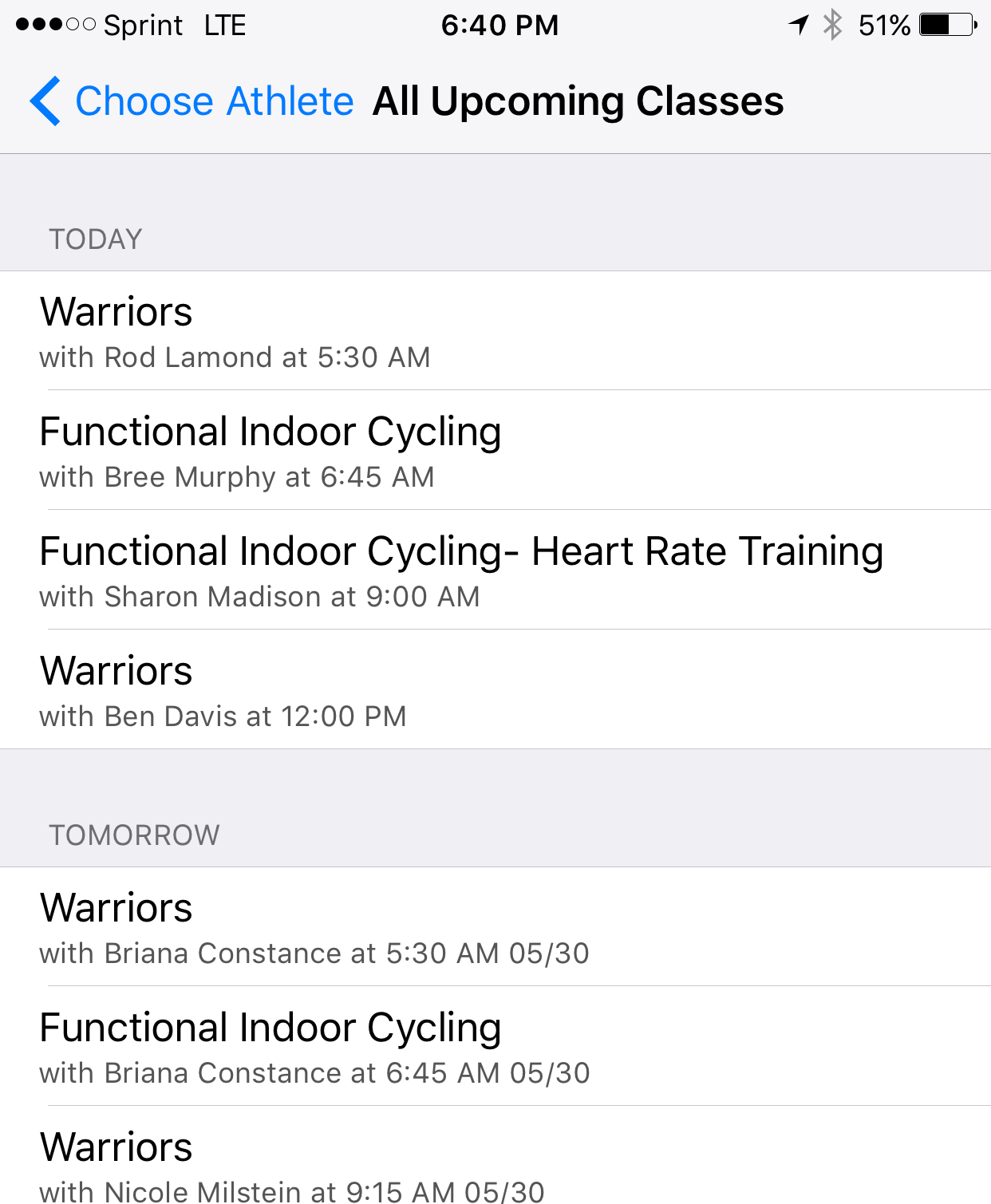
- Select "Next MINDBODY Class" or "View All Classes" to choose a class up to three days in the future.
- The app will contact the MINDBODY server to retrieve all the clients from your class.
- If this is the first time the athlete has used OnBeat, you must confirm all their profile information is correct and link a heart rate monitor to them.
- Once an athlete has been imported and you have updated their profile, the app will remember them going forward. If they have a personal heart rate monitor, they will appear on the screen automatically.
----------------------------------------------------------------------
Automatic Refresh of MINDBODY Classes
Once a class has been loaded, the app will automatically check the MINDBODY server again for new athletes 5, 4, 3, 2, and 1 minute before the class starts. The app also checks MINDBODY one last time 2 minutes after the class starts. If an athlete joins after that, you will need to either manually add them or manually reload the class.