Factory Reset WASP Antenna/WiFi Bridge
Follow the instructions below to factory reset your WASP antenna.
- Download the WASP Utility app for your iPhone or iPad. https://itunes.apple.com/us/app/wasp-util/id966390978 The app is only needed for configuring the WASP. It is not needed for OnBeat to operate.
- Turn on the WASP by holding the power button for three seconds. The red light should be flashing rapidly and the green light flashing twice.
- Press the power button for one second to put the WASP in configuration mode. The red light should stop flashing rapidly and the green light should be flashing once. In configuration mode, the WASP has created its own Wi-Fi network for you to connect to and configure.
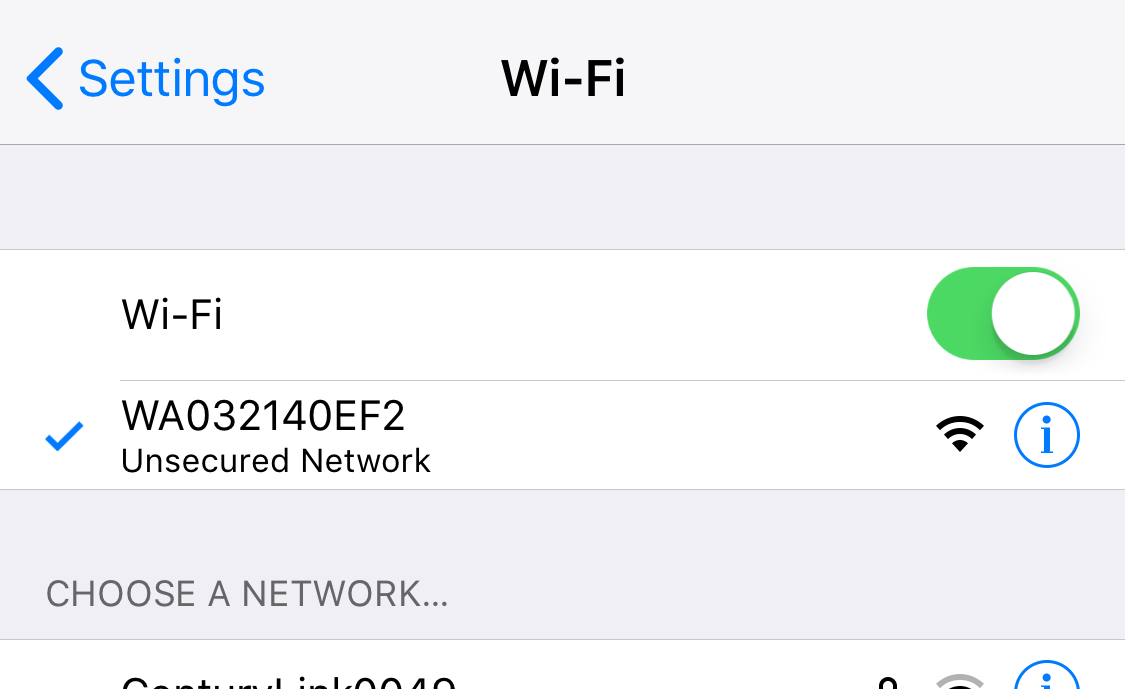
- On your iPhone or iPad, go to General Settings > Wi-Fi. Turn over your WASP and take note of the last four digits of the serial number. Those digits will appear in the list of Wi-Fi networks on your iPhone or iPad. It will look something like WA032140EF2. Join that WASP network. You will temporarily have no internet once you join the WASP network.
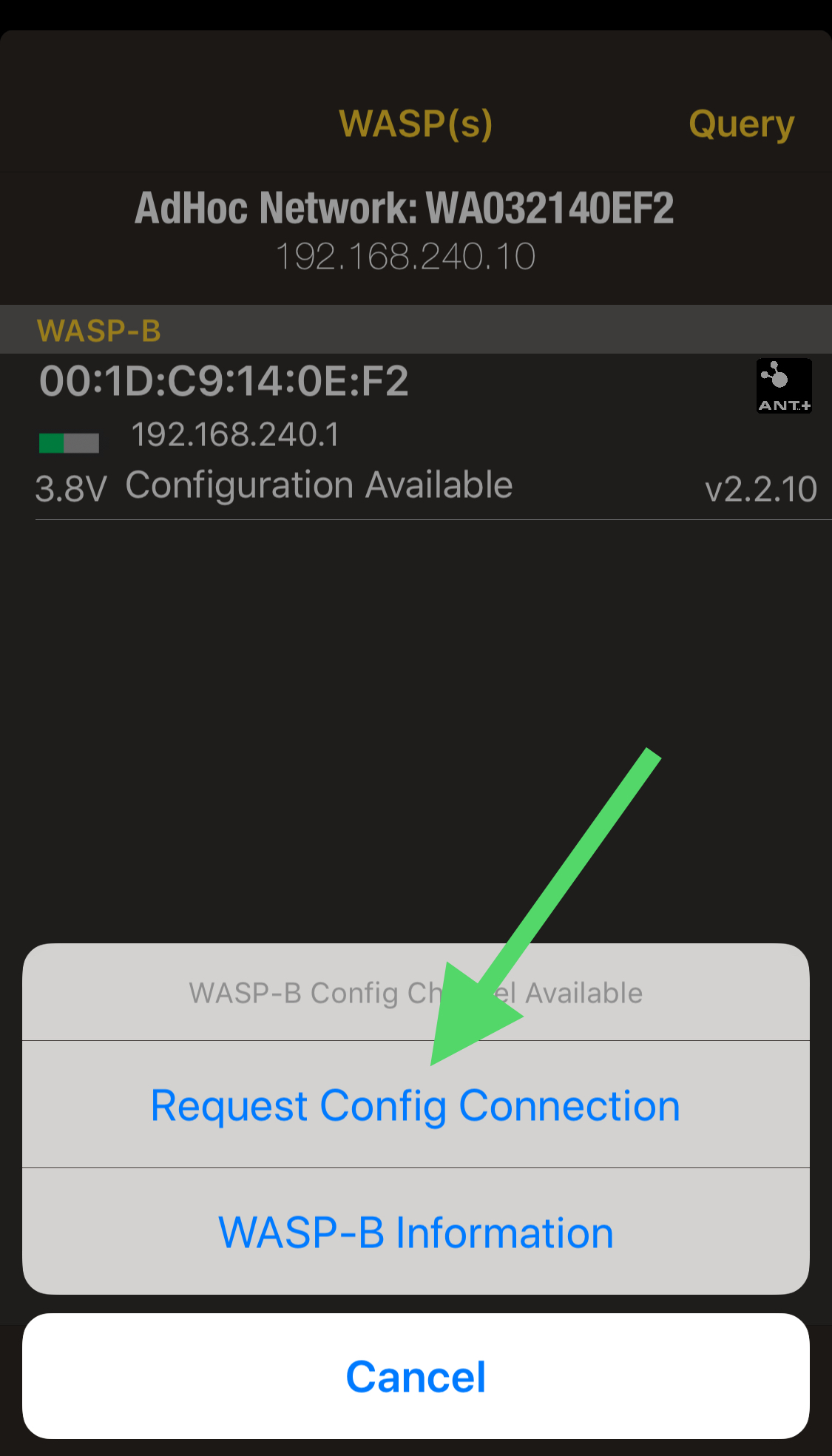
- Open the WASP Util app. Choose WASPs in the bottom left corner. Your WASP should appear in the list.
- Select the WASP from the list and choose "Request Config Connection."
- Scroll down the screen and choose the text that says "Factory Reset."
- This will clear all settings and the SSID (Wi-Fi name) should say "Wasp". If you see this, you know the factory settings have been restored.
- Follow this link to configure the WASP to your Wi-Fi again.